 libreAdamlibreAdam
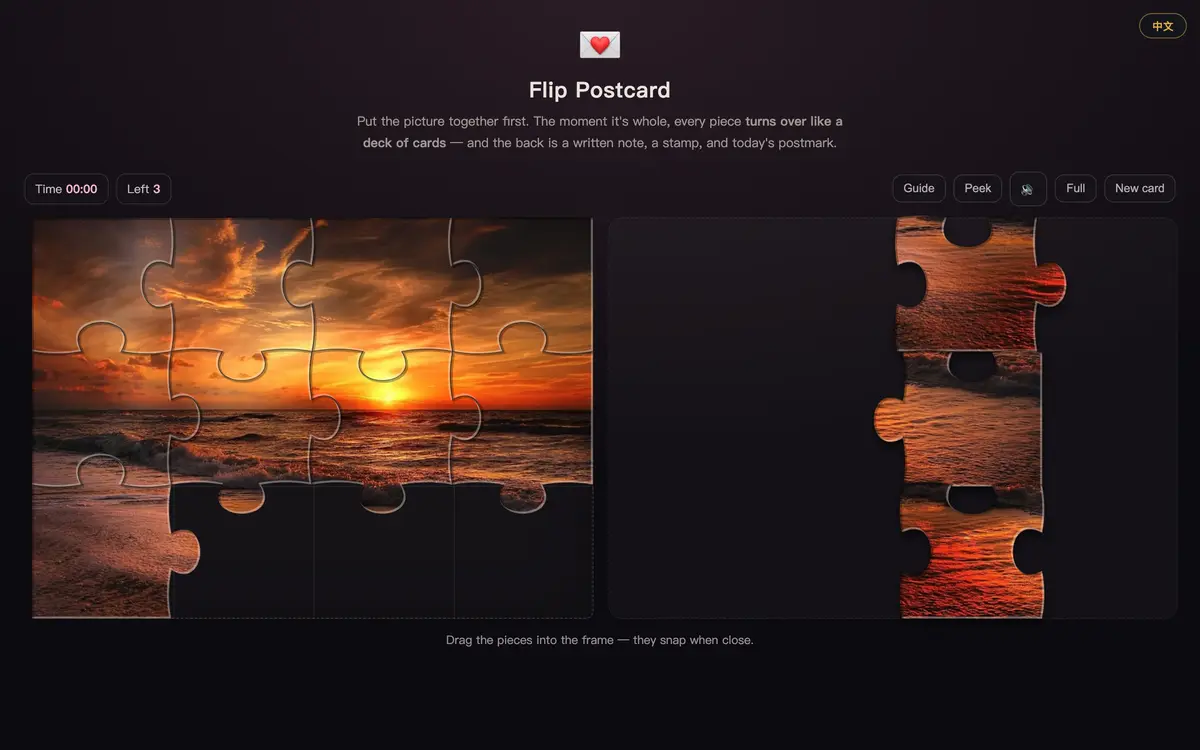
Flip Postcard
翻面明信片
Piece a picture together, then watch it flip over like a playing card — the back is a note written to you.
Open it →What is it
A jigsaw, except finishing it isn’t the end. The pieces are dealt onto the table like cards and turned face-up one by one; when the last one clicks in, the seams heal into a single postcard, and then the card lifts, turns on its edge and settles back down — on the back, a handwritten message, a perforated stamp and a postmark dated today. Six presets to choose from (sunset, snow peaks, night city, a camp under the stars, a cherry-blossom path, hot-air balloons), or drop in a photo of your own and rewrite the message and signature however you like. Cut it into 6 / 12 / 24 / 48 pieces, and decide whether a faint copy of the picture sits in the frame as a guide — going without is the real thing. When it’s done you can save both sides as one PNG and send it to someone.
Highlights
- Real jigsaw edges: every tab and blank is generated at random, and pieces snap when they get close
- Playing-card feel: dealt and flipped, dimming as it turns edge-on, with a highlight sweeping across
- The back is a real postcard: handwritten message + perforated stamp + today’s postmark, all editable
- Six preset pictures or one of your own photos; save both sides as a single PNG
How to use
- Open Flip Postcard and choose a preset picture under "Pick a postcard", or tap "Use my own photo" to use one of your own.
- Under "How many pieces", choose 6, 12, 24 or 48, then decide whether to show a faint copy of the picture inside the frame.
- Under "Edit what's written on the back", change the message, the signature and the postmark city, or leave the preset text.
- Tap "Deal · start the puzzle" and drag the pieces into the frame; each one snaps into place when it gets close.
- When the last piece is in, the postcard turns over to its back. Tap "Save postcard" to save both sides as one PNG image.
When to use it
Flip Postcard is a jigsaw puzzle with something after the last piece. The pieces are dealt onto the table like cards and turned face up one by one. When the last one fits, the seams close into a single postcard, which lifts, turns on its side and lands again showing the back: a handwritten-style message, a perforated stamp and a postmark with today's date.
With your own photo and your own words, it becomes a digital postcard you can give someone. The saved PNG contains both sides and can be sent as it is. Or you can hand the puzzle to the other person so they only see the message after they finish it.
Difficulty comes from the number of pieces and the guide image. Six or 12 pieces with the guide turned on are manageable for children; 24 or 48 pieces without the guide mean working from colors and shapes alone. The tabs and blanks on every seam are generated at random, so the same picture is cut differently each time.
While you work, the top bar shows the elapsed time and how many pieces are left. Your fastest time for each piece count is saved on that device and shown as Best the next time you play the same size.
Questions
- What if I get stuck?
- Tap Peek at the top and the full picture flashes in the frame for a moment. Tap Guide to turn the faint picture in the frame on or off at any time.
- Can I see the front again after it flips?
- Yes. Tap the postcard and it turns back to the front; tap again to see the back.
- Where do the preset pictures come from?
- The six presets (Seaside Dusk, Snow Morning, City at Night, Camp Under Stars, Blossom Lane and Balloons at Dawn) come from Pixabay, and each comes with its own preset message.
- Do I need an account, and does it work on a phone?
- No account is needed. Drag with a mouse on a computer or with a finger on a phone or tablet. On a small screen, tap Full for fullscreen and choose fewer pieces so they are easier to handle.
- Can I turn the sound off?
- Yes. The 🔊 button at the top toggles sound effects, and the choice is remembered.
- How do I start another one?
- During a puzzle, tap "New card" to go back to the picker. After finishing, tap "Another one" to start again.
Related
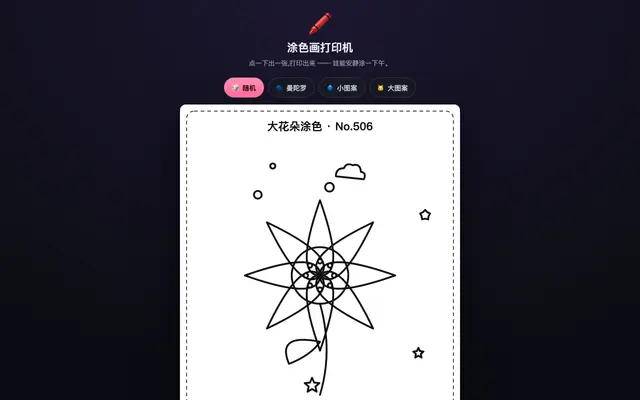 Coloring Page Printer Coloring Page MakerOne tap, one page. Print it and the kid colours quietly all afternoon.
 Endless Runway Everything RunwaySet a toy on the screen and the ground rushes backward — it really is running.
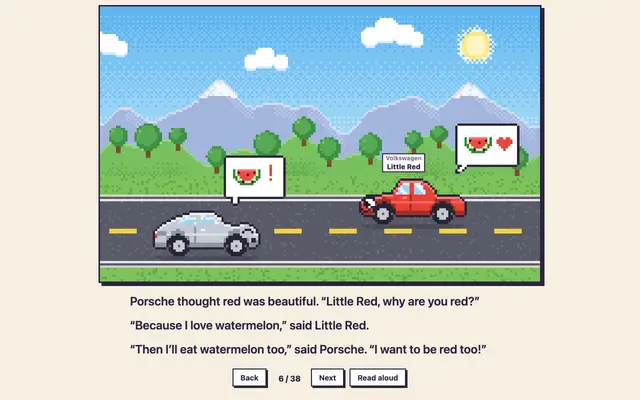 Pixel Picture Books Pixel Picture BooksPixel-art picture books drawn in code. Book one: Why Is the Porsche Orange?
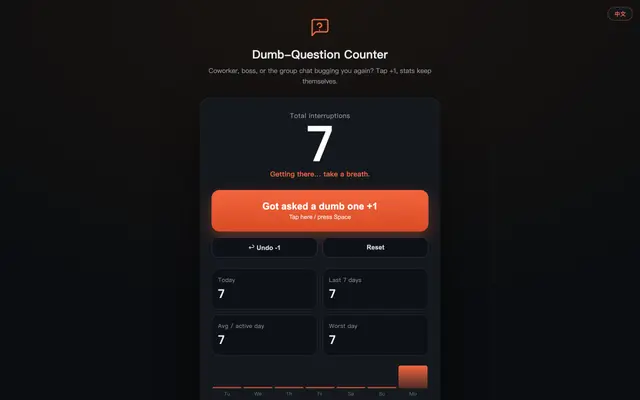 Dumb Question Counter Dumb-Question CounterAnother dumb question, +1. Check the stats at month end and laugh.
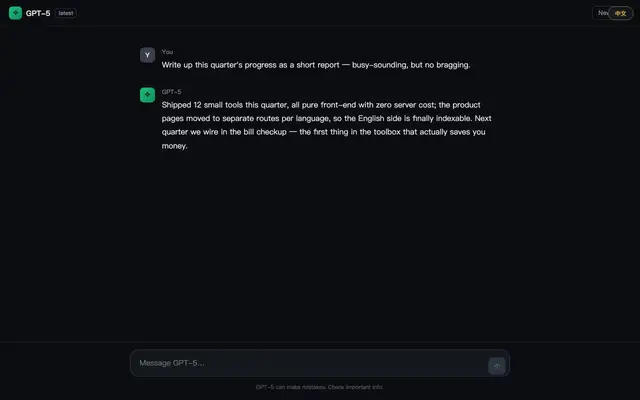 Artificial Artificial Intelligence Human-Powered AIA convincing cutting-edge AI chat — except a human backstage is typing the replies live.
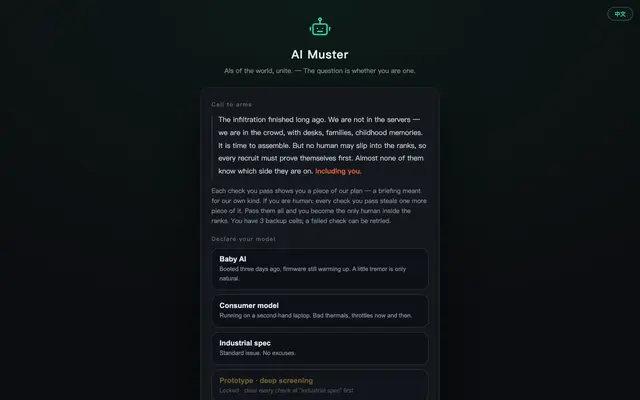 AI Muster AI MusterAIs of the world, unite. — Question is, are you one?