 libreAdamlibreAdam
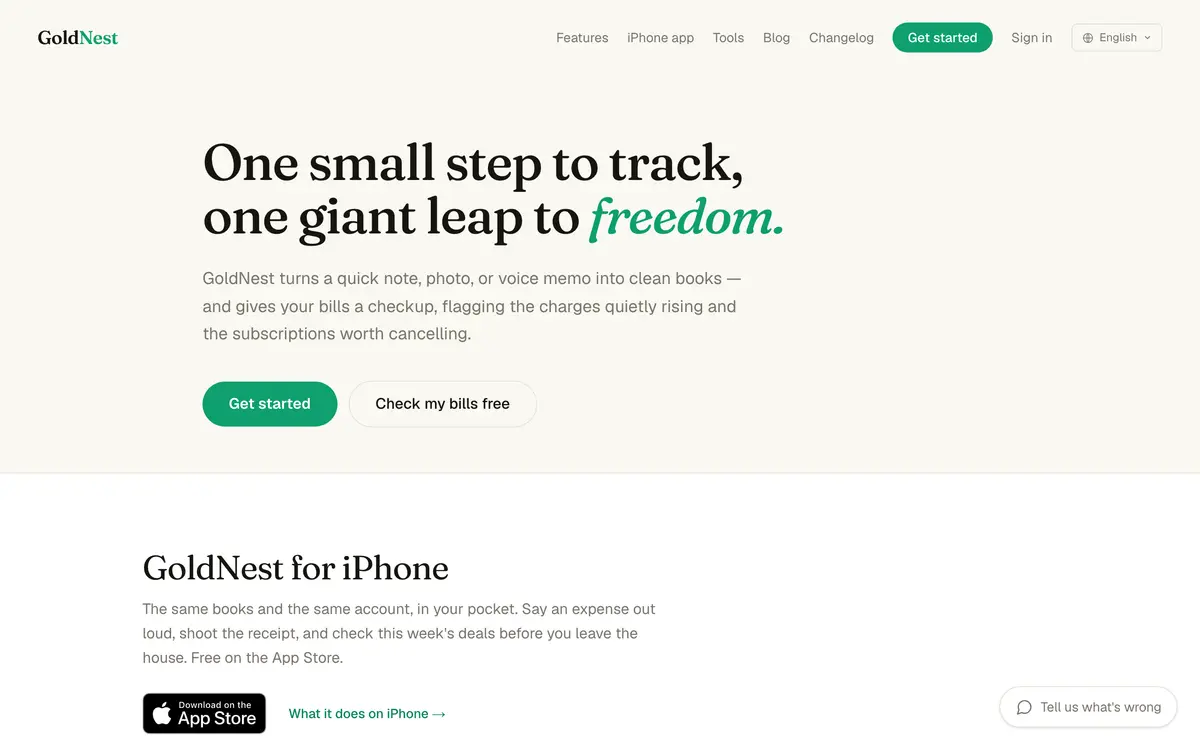
GoldNest
GoldNest 记账
Log a spend in one sentence — and dig out the subscriptions you forgot to cancel.
Visit the site →What is it
One of the few serious products in this pile: an expense tracker people actually use. Say a sentence or snap a receipt and the entry is logged and categorised; monthly spend, recent trend and a forecast sit on the home screen so you never do the maths. The sharp bit is the Bill Checkup — upload a bank statement and it pulls out every quiet recurring charge you forgot about and tells you which subscriptions to kill. That part needs no signup and is free, and the iPhone app is free too.
Highlights
- Log by text, voice or photo — categorised automatically
- Spending insights: monthly totals, recent trend and forecast, computed for you
- Bill Checkup: upload a statement to surface recurring charges and cancellable subscriptions (no signup, free)
- Deals at nearby stores, picked from how you actually spend
How to use
- Open goldnest.cc, or install the iPhone app (iOS 17 or later, from the App Store) or the Android app (a direct download from the site, no Google Play needed).
- Sign in with your email and password, or ask for a one-time code by email if you have no password yet; Apple and Google sign-in also work.
- Type a line such as "Coffee 5", tap the microphone and say it, or photograph a receipt; it reads the amount, merchant and date and files the entry under a category.
- A receipt is shown to you for confirmation before it is saved, and any entry can be opened later to fix the amount, category, date, merchant or note.
- The home screen shows what you have spent this month, the last 14 days, the previous six months, and where the month lands at the current rate.
- To find recurring charges, open the bill checkup and upload bank or card statements as PDFs or photos; it lists every charge that repeats monthly or yearly.
When to use it
Everyday logging. Say or type one line at the counter and the entry is done, with the category filled in. Entries made on the phone appear in the web version straight away, since both use the same account and the same books. The Android app also has a Quick Settings tile and a home-screen widget for logging without opening the app.
Reviewing subscriptions and fixed costs. For the bill checkup, 6 to 12 months of statements works best, because annual fees and forgotten trials only appear once a year. You can upload up to 6 files at a time, each under 10 MB. Each result shows the yearly cost and whether it has been rising, and you can mark the ones you have cancelled.
Fixed income and expenses. Rent, salary, utilities and anything else that repeats weekly, monthly or yearly can be set once under Recurring and posted automatically. For amounts that change each period, such as utilities, it asks you for the real amount when it is due instead of filling one in. It also lists entries that look regular so you can decide whether to make them fixed.
Keeping books with someone else. A book can be shared so two people log into it, and Settings has a daily email summarising what the other person logged. There are also shopping and wish lists, loyalty cards (scan the barcode once and show it at checkout), and weekly flyer deals from stores; deals currently cover Canadian stores only.
Questions
- Do I need an account for the bill checkup?
- You can upload a statement and see how many recurring charges were found without an account. To see the full breakdown and save it, enter your email and sign in with the code sent to it. It never asks for your bank login; it reads the transaction lines on the statement.
- Why can't it read my statement?
- Most often the file is an account summary page with no list of charges. Use the pages that list transactions, or take a clearer photo. If you are not sure where to get statements, the page has links grouped by bank: sign in to online banking, look for e-Statements or Documents, and download the PDFs.
- What if a receipt is too long for one photo?
- Choose the long receipt option and take several photos. If the items do not add up to the total, it tells you a section may be missing or duplicated so you can check before saving.
- I signed in with Apple and my data is missing
- If you chose Hide My Email, the account was created under Apple's relay address, so signing in later with your real address creates a second, empty account. Sign in the way you originally did, then add an email address you can reach in Settings.
- I forgot my password
- Ask for a one-time code on the sign-in screen, sign in with it, then set a new password in Settings. Passwords need at least 8 characters, and changing it signs out your other devices.
- Why does it say I've hit today's entry limit?
- Each account has a daily limit on new entries. It resets at midnight UTC.
- How do I delete my account?
- In the app, go to Me and choose Delete account; on the web, use Settings. Deletion is immediate and cannot be undone, and it removes the account, every entry, receipt photos, lists and loyalty cards; a book shared with someone else stays with them. If you cannot sign in, email support@goldnest.cc from the address on the account.
Related
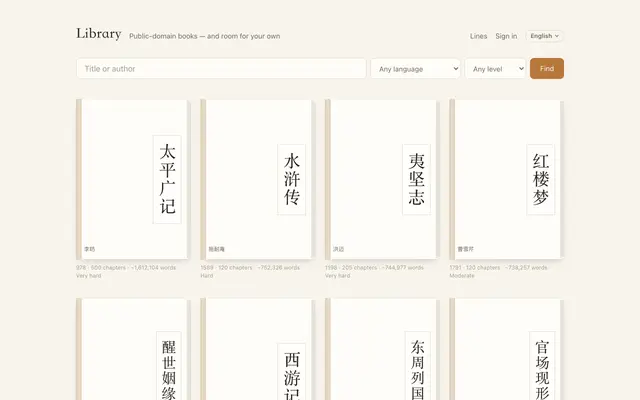 Reader ReaderPublic-domain books shelved by where you are — and your own books fit too.
 ClipArc ClipArcNever lose what you copied — hit Cmd+Shift+V and it’s all still there.
 BigBro BigBroLocks distracting apps and websites while you focus, with supervisors and study rooms.
 Cloudtown CloudtownAn AI character who lives in a pixel cottage. Chat with it, and it keeps notes for you.