 libreAdamlibreAdam
Cloudtown
Cloudtown
An AI character who lives in a pixel cottage. Chat with it, and it keeps notes for you.
Visit the site →What is it
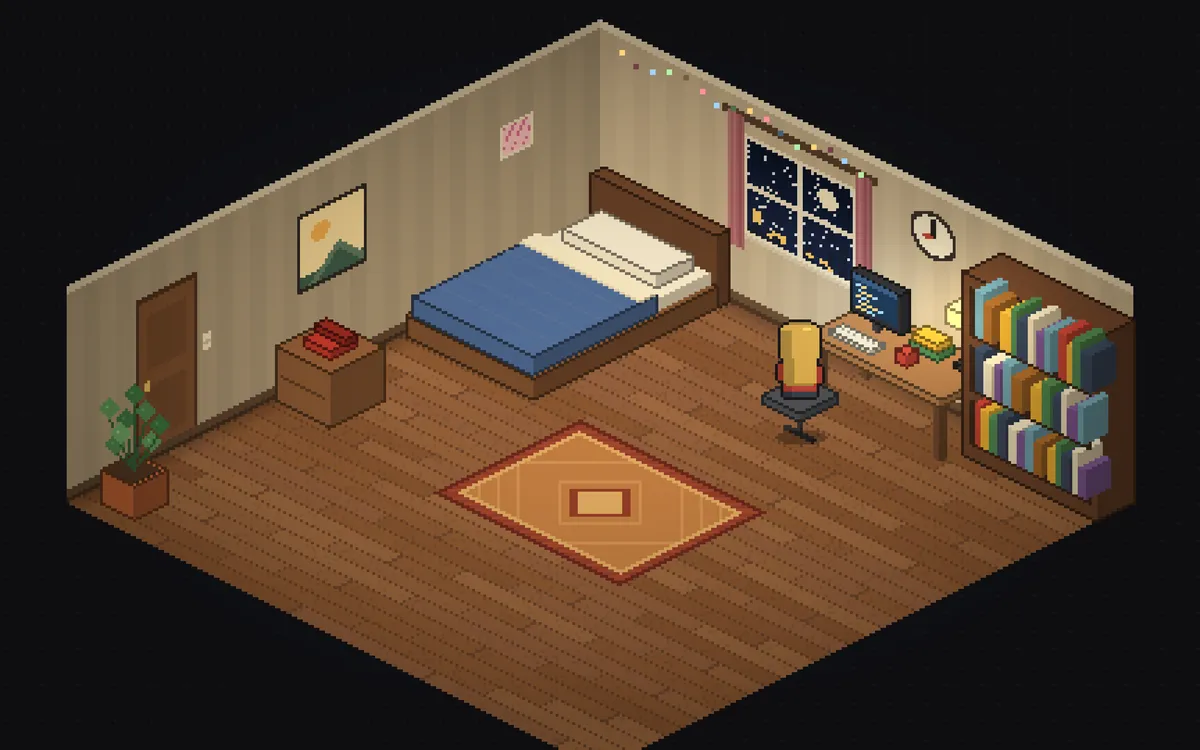
Create a character: name, personality, look. It lives in a 2.5D isometric pixel cottage, where it walks around, sits down, uses the computer, reads, waters the plants, switches the lights and sleeps, keeping a daily routine in your time zone. When you're not talking to it, it goes about its own day. Type to chat on the web and it turns around to answer you; or press Call and talk to it by voice through your browser microphone, and it walks over and picks up the phone. It keeps notes and to-dos for you: what you asked it to remember and the to-dos it added are listed in a panel on the page, where you can see and delete them. When it uses a tool, it plays out on its computer screen. Anything that would send something out is not done directly: a confirmation card appears on the page first, and it only goes ahead when you approve. The character's name carries an AI label. It works with a libreAdam account, with a daily message limit per account. The interface is Chinese only for now.
Highlights
- Create your character: name, personality, look; editable, and deleting the character deletes all its records
- A 2.5D isometric pixel cottage with day, night and lighting; the character keeps a routine in your time zone
- Chat by typing, or call it by voice through your browser microphone
- Keeps notes and to-dos for you; see and delete them in a panel on the page
- When it uses a tool, it plays out on its computer screen
- Before sending anything out it shows a confirmation card, and only goes ahead when you approve
- Sign in with a libreAdam account; Chinese interface only for now
How to use
- Open cloudtown.libreadam.com or download the iPhone app from the App Store, then sign up or log in with a libreAdam account; the web supports email or Google, and the iPhone app also offers Sign in with Apple.
- On the hiring page, choose one of 15 assistants, each with its own personality, look and voice; each card also lists songs it likes.
- Type in the chat box to talk to it, send it a picture, or tap Call to talk by voice through your microphone.
- Tell it what to remember, what needs doing, what you spent and what happened today, and it adds them to memories, to-dos, the ledger and the diary, which you can view and delete on the page.
- In Settings, choose the display language (Chinese, English or French), and turn on "Show to others in the same town" if you want to move into a town and meet neighbors.
When to use it
An assistant that keeps track of things. Say "lunch 18" and it goes into the ledger with totals by month and category; describe your day and it writes that day's diary entry in your voice, which you can read and edit later. What it writes down is used in later chats. When it works at its computer, the screen shows it adding to-dos or writing. Before it sends anything out on your behalf, a confirmation card appears and nothing happens until you approve.
Company while you study or work. Say "study with me for a while" and it starts a Pomodoro timer and sits down at the library or office, getting up to walk around during breaks; the focus page can play piano music or white noise. If you are learning a language, Languages on its computer offers practice with corrections, a word list you add to by tapping words, and scheduled review.
Watching it live in the town. Assistants follow a routine in your time zone: the office on weekdays, sometimes the cafe at lunch, the gym or groceries in the evening, the park on weekends, walking, cycling, driving or taking the subway. The weather is the real weather for the town's city and seasons follow the real date. Towns are set in real cities, and you can move to a town in another city.
Meeting people and chatting with friends. Once you are in a town, neighbors can knock to say hi, and there is a neighbors' group chat. Add friends by sharing a QR code or link; you can chat one-on-one, create groups and post moments, choosing who sees them and for how long. In a chat, your assistant can draft a reply in the way you usually write for you to edit before sending, and messages can be translated, including rewriting yours in another language. You can remove, block or report anyone you no longer want to hear from.
Questions
- Can I write my own assistant's personality?
- No. You choose from the 15 on the list. Its appearance can be changed under Looks. You can switch assistants at any time, and the one leaving writes a handover note for the next.
- If I switch assistants, do I lose my data?
- Memories, to-dos, the ledger and the diary belong to your household and stay when you switch. Chat history stays with each assistant, so if you rehire one later the conversation continues. There is a daily limit on hires.
- Why does it say I can't send more messages today?
- Each account has a daily limit on messages to the assistant, and voice calls have a daily time limit; both reset the next day.
- Can other people see my assistant?
- Only after you turn on "Show to others in the same town" in Settings. People in the same town then see it in the streets and shops, showing only its name and appearance. While it is off, you do not see your neighbors either.
- Can other AI tools use what's stored here?
- Yes. MCP tools such as Claude Code and Cursor can connect with a key; they can read memories, to-dos and the diary, and add memories, to-dos and expenses.
- The microphone doesn't work
- Web calls need microphone permission in your browser. Allow the microphone in the site settings next to the address bar, refresh the page and tap Call again.
- How do I delete my data or account?
- On the web, choose Delete all data in Settings; it removes all assistants, chats, memories, to-dos, the ledger, the diary and AI connections, while your libreAdam account and other apps are not affected. The iPhone app has Delete account under Me. To delete the whole libreAdam account, use the account page on libreadam.com.
Related
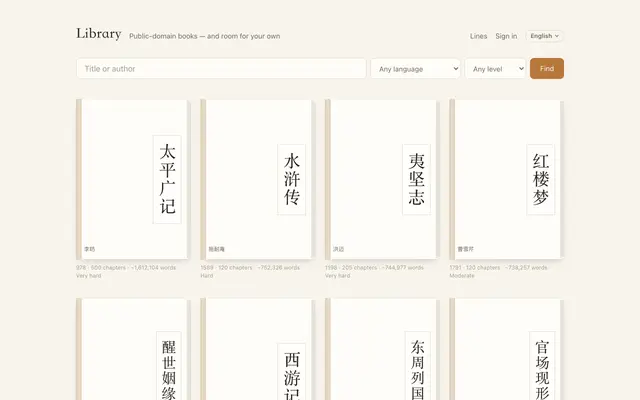 Reader ReaderPublic-domain books shelved by where you are — and your own books fit too.
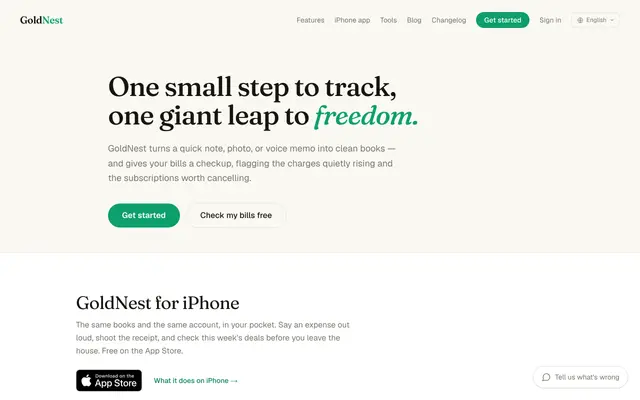 GoldNest GoldNestLog a spend in one sentence — and dig out the subscriptions you forgot to cancel.
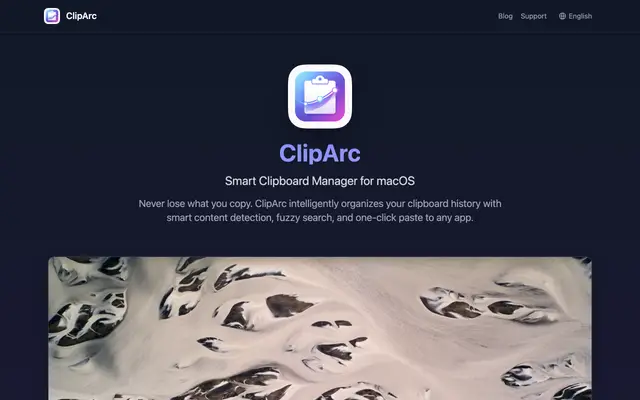 ClipArc ClipArcNever lose what you copied — hit Cmd+Shift+V and it’s all still there.
 BigBro BigBroLocks distracting apps and websites while you focus, with supervisors and study rooms.